Laravel team has recently released a new package that allows developers to create MCP (Model Context Protocol) servers using the Laravel framework. This brings so much possibilities of making your applications powerful, smart and solve real business problems. For those who are new to MCP, we have already covered what is MCP and how it works. Basically it’s protocol that let different applications to share context with AI agents securely.
Installation #
First create a new Laravel project using Composer or Laravel Installer. Then install the MCP package via Composer:
composer require laravel/mcpNext, execute below command to publish the routes/ai.php file that will contain all the MCP server routes.
php artisan vendor:publish --tag=ai-routesAfter running the above command, you will find a new file at routes/ai.php. Like we have routes/web.php for web routes or routes/api.php for API routes, this file will contain all the MCP server related routes.
Creating Servers #
The MCP server I’m going to create will show details of companies listed in Colombo Stock Exchange (CSE). When I provide the company symbol to an AI agent, it should return the relevant details about that company using MCP server. The first thing you need to do is create a new MCP server class. You can do this by running the following Artisan command.
php artisan make:mcp-server CSEServerA new file named CSEServer.php will be created in the app/Mcp/Servers directory. In the CSEServer class, there is $name property that you can set to define the name of your MCP server. The $version property can be used to specify the version of your server, this can be bumped up when you make significant changes to the server’s functionality. The $instructions property is an important part of the MCP server. This property contains the instructions that will be provided to the AI agents when they interact with your MCP server. You can customize these instructions to guide the AI agents on how to use your server effectively. You can use markdown syntax in the instructions to format the text and make it more readable. Next you can add tools, resources and prompts. In this tutorial, I’m going to add a tool that fetches company details from CSE API.
Registering the Server #
Then we have to add the server route in the routes/ai.php file.
<?php

use App\Mcp\Servers\CSEServer;
use Laravel\Mcp\Facades\Mcp;

Mcp::web('/mcp/cse', CSEServer::class);
Since we are creating a web-based MCP server, we are using the Mcp::web method to define the route. We can use typical Laravel route features like middleware, prefixes, etc.
Adding Tools #
Tools are what gives MCPs their functionality. Tools are classes that implement specific actions or operations that the MCP server can perform. In our case, we are going to create a tool that fetches company details from CSE API.
php artisan make:mcp-tool FetchCSECompanyDetailsThis will create a new tool class named FetchCSECompanyDetails in the app/Mcp/Tools directory. This class should be added to the CSEServer class’s $tools property.
protected array $tools = [
        FetchCSECompanyDetails::class,
];
The FetchCSECompanyDetails tool class has a $description property that describes what the tool does. This description will be provided to the AI agents when they interact with the MCP server. Use can use markdown syntax in this too. You can define optional $name and $title properties to give your tool a custom name and title. The default name will be the class name if not provided.
Tool Input Schema #
The FetchCSECompanyDetails tool class also has an schema method that defines the input schema for the tool. When we work with data structures or databased, it’s important to define a clear schema that outlines the expected format and types of data. This helps ensure that the data is consistent and can be processed correctly. In our case, we are defining a schema that expects a single input parameter named symbol, which is a string representing the company symbol.
public function schema(JsonSchema $schema): array
{
    return [
        'symbol' => $schema->string()->description('The stock symbol of the company to fetch details for.')->required(),
    ];
}
Tool Execution Logic #
The core functionality of the tool is implemented in the handle method. This method contains the logic to fetch company details from the CSE API based on the provided symbol.
public function handle(Request $request): Response
    {
        $validated = $request->validate([
            'symbol' => 'required|string',
        ]);

        $symbol = strtoupper($validated['symbol']);

        $response = Http::post("https://www.cse.lk/api/companyInfoSummery?symbol={$symbol}");

        if ($response->failed()) {
            return Response::text("Failed to fetch company details for symbol: {$symbol}");
        }

        $data = $response->json();

        return Response::text(json_encode($data, JSON_PRETTY_PRINT));
    }
In this method, we first validate the input to ensure that the symbol parameter is provided and is a string. Then we make an HTTP POST request to the CSE API to fetch the company details. If the request is successful, we return the company details as a formatted JSON response. If the request fails, we return an error message.
Testing the MCP Server #
First start the Laravel development server using php artisan serve command or any other method you prefer. Then you can test the MCP server using an AI agent that supports MCP protocol like Claude Code or GitHub Copilot. First you have to setup the MCP server URL in the AI agent settings. Since I use Github Copilot, I need to create a file .vscode/mcp.json in my project with below content.
{
	"servers": {
		"cse company": {
			"url": "http://127.0.0.1:8000/mcp/cse",
			"type": "http"
		}
	},
	"inputs": []
}
After setting up the MCP server URL, you have to run the server, you can use the start button shown in the mcp.json file in VSCode. Once the server is running, you can interact with it using the AI agent. For example, you can ask the AI agent to fetch details of a company listed in CSE by providing the company symbol.
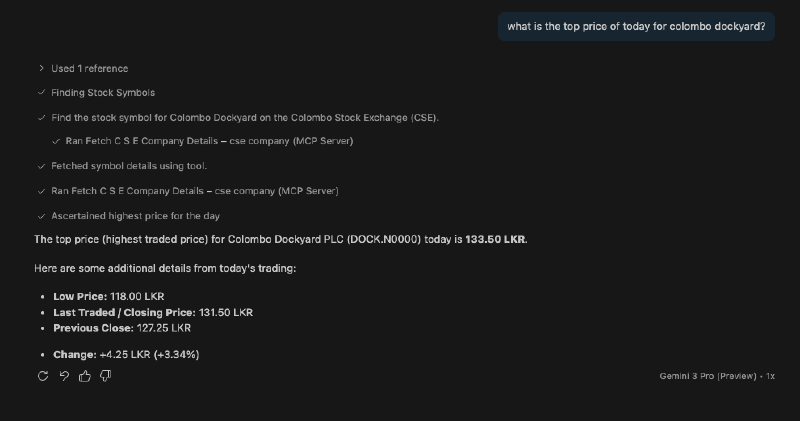
As you can see in the above image, I asked the AI agent to fetch details of the company “Colombo Dockyard” without providing the symbol. But since the MCP server is registered and the tool has a clear schema, the AI agent was able to understand that it needs to use the FetchCSECompanyDetails tool and provide the required symbol input. The AI agent then called the MCP server with the appropriate parameters and returned the company details.